> For the complete documentation index, see [llms.txt](https://setup.livereach.ai/llms.txt). Markdown versions of documentation pages are available by appending `.md` to page URLs; this page is available as [Markdown](https://setup.livereach.ai/installation-guide/roi.md).

# 5. Set the view and ROI

Keep useful vehicle coverage while excluding obstructions from the detection region.

## Before you start

Confirm each camera is available in SafeTunnel and its placement passes the previous checks. Open the camera view and ROI controls using the setup instructions supplied by your LiveReach deployment contact.

A **region of interest (ROI)** is the part of the camera image selected for analysis. Excessive obstruction in this region can cause alerts too frequently.

{% stepper %}
{% step %}

### Check the stream used by the system

Verify at least **1080p** and **15 fps** on the stream used for the installation, rather than relying only on a camera’s advertised capability. Use the available stream information with LiveReach to confirm the delivered rate. Investigate drops, pauses, blur, or changing frame rate before adjusting the ROI.

Confirm that the image has no fisheye or barrel distortion. Inspect the lens and review visibility in the brightest and darkest conditions in which the site operates.
{% endstep %}

{% step %}

### Select the largest unobstructed region

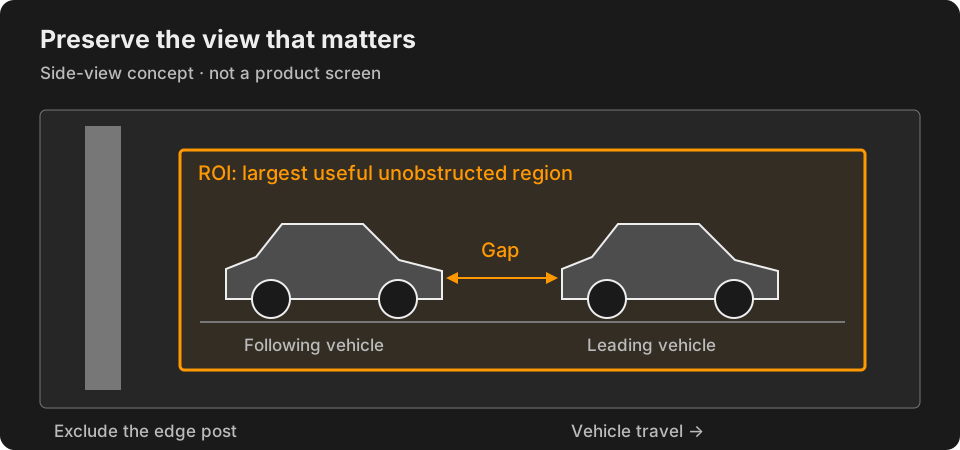
Include as much useful vehicle area as possible without including obstructions. Exclude fixed posts, equipment edges, and obstructed parts of the image. Consider the area swept by moving equipment across the full wash cycle.

Keep the vehicle features and gap needed for coverage inside the selected region. Avoid shrinking the region so far that it removes the front or rear edges you need to see.

<figure><img src="https://3748104918-files.gitbook.io/~/files/v0/b/gitbook-x-prod.appspot.com/o/spaces%2Fcfh08s1E8Fn9MOdqduSf%2Fuploads%2Fp4jDeAxgX54pxvwZtb0a%2Froi-coverage.svg?alt=media" alt="Schematic camera image with an ROI around two vehicle side profiles and their gap. An equipment post at the edge of the image is outside the ROI."><figcaption><p>Keep the useful vehicle area and gap; exclude edge obstructions. This is a concept diagram, not a SafeTunnel screen or a site-specific ROI.</p></figcaption></figure>
{% endstep %}

{% step %}

### Review a complete vehicle pass

Watch both vehicle edges and the gap through the assigned zone during normal operation. Check brushes in motion, different vehicle sizes, and lighting changes. Save the ROI configuration and a dated baseline using the LiveReach setup process.

If the region cannot exclude an obstruction while preserving the required view, return to [camera placement](/installation-guide/placement.md). Ask LiveReach to review the view and coverage plan before commissioning.
{% endstep %}
{% endstepper %}

{% hint style="warning" %}
**An ROI cannot repair missing coverage.** It cannot recover a vehicle hidden behind a post, bring a clipped bumper into frame, correct lens distortion, or compensate for an unsuitable mounting angle.
{% endhint %}

## Inspect difficult lighting

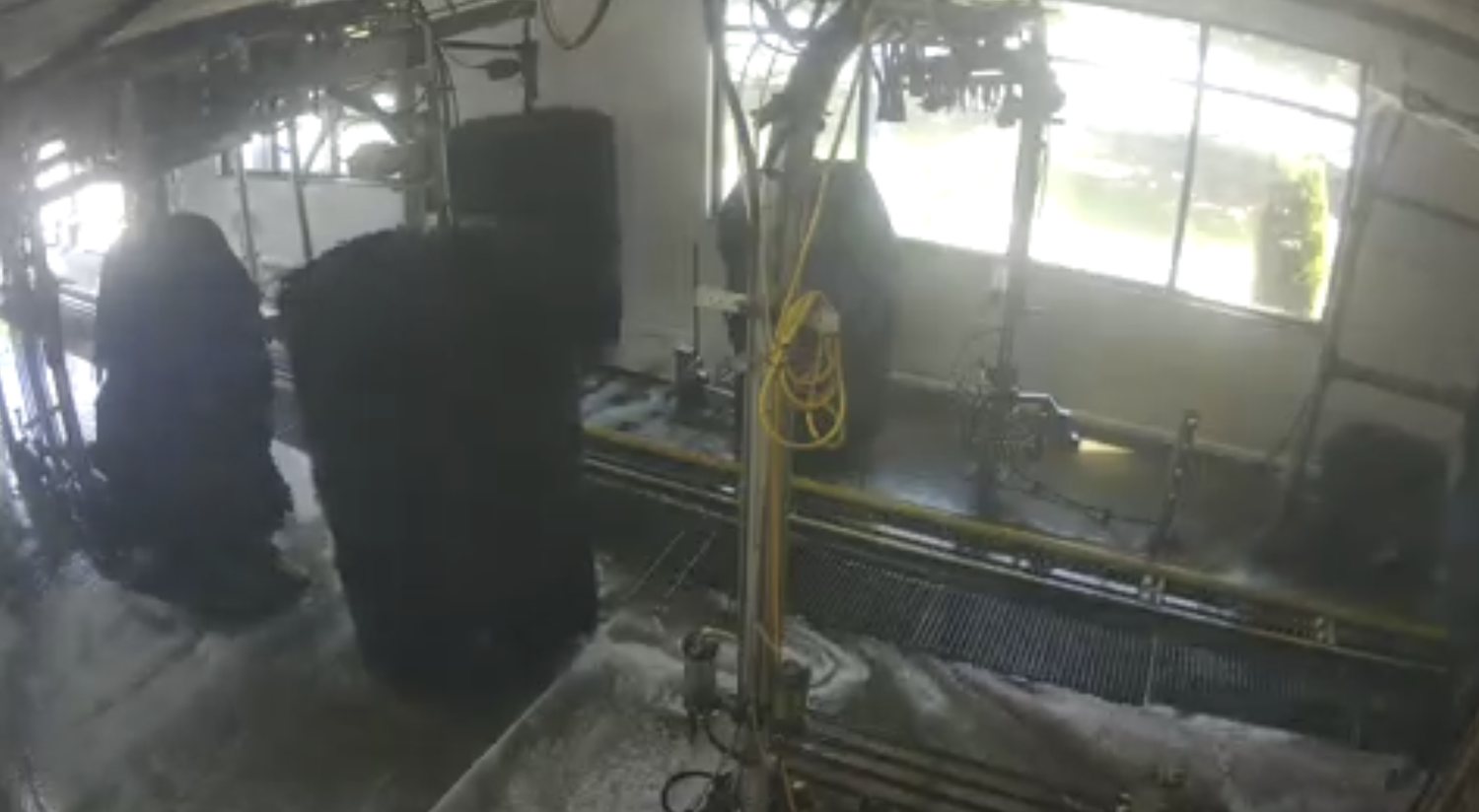
<figure><img src="https://3748104918-files.gitbook.io/~/files/v0/b/gitbook-x-prod.appspot.com/o/spaces%2Fcfh08s1E8Fn9MOdqduSf%2Fuploads%2F6GLNO5FSFjH7Y7RpfbTV%2Ffield-glare.jpg?alt=media" alt="Tunnel camera frame with bright windows behind equipment and a dark foreground wash area."><figcaption><p>Inspection example: bright windows and a dark foreground make vehicle detail harder to judge. Review exposure across the site’s operating hours; this image is not a passing reference view.</p></figcaption></figure>

Adjust camera exposure or image settings with the deployment team as appropriate for the model. If reflections or backlighting still hide vehicle detail, revise the position or lighting with the site lead.

## Check before continuing

* [ ] The delivered stream meets the resolution and frame-rate requirements.
* [ ] The image is clear and free of fisheye/barrel distortion.
* [ ] The ROI is the largest useful region that excludes obstructions.
* [ ] Required vehicle edges and gaps remain visible through each assigned zone.
* [ ] ROI and baseline images are saved; unresolved coverage issues are recorded.

**Next:** [Connect the optional relay →](/installation-guide/relay.md) · **No relay?** [Go to verification →](/installation-guide/verify.md)